WeCom Setup
Connect your CCCC working group to WeCom (企业微信) for enterprise collaboration.
Overview
WeCom is a good fit for:
- Chinese enterprises already using 企业微信
- Teams that want a bot reachable from mobile clients
- Organizations that prefer long-connection bots without a public callback URL
CCCC currently integrates with the WeCom AI bot long-connection channel:
- inbound messages arrive over a persistent WebSocket connection
- no public callback URL or domain verification is required
- the current CCCC bridge only needs Bot ID and Secret
Prerequisites
- A WeCom tenant with permission to create smart robots
- CCCC installed and running
- Access to the WeCom client or management console
Step 1: Create a WeCom Smart Robot in Long-Connection Mode
Reference: official WeCom help center guide
https://open.work.weixin.qq.com/help2/pc/cat?doc_id=21657
Use the API 模式 + 使用长连接 path. This is the path CCCC is wired for today.
- Open WeCom and go to 工作台 → 智能机器人
- Click 创建机器人 → 手动创建
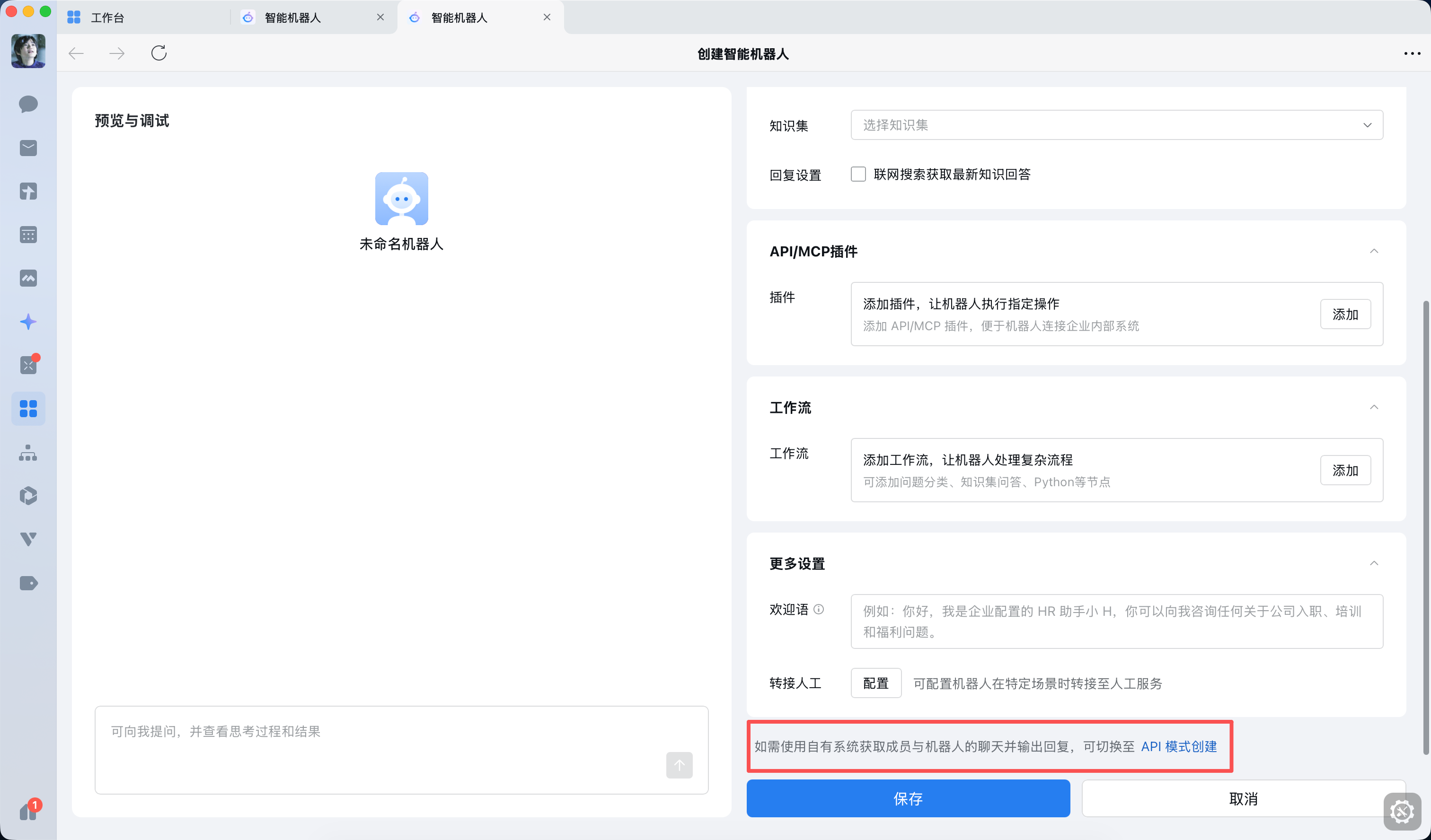
- Switch the robot to API 模式
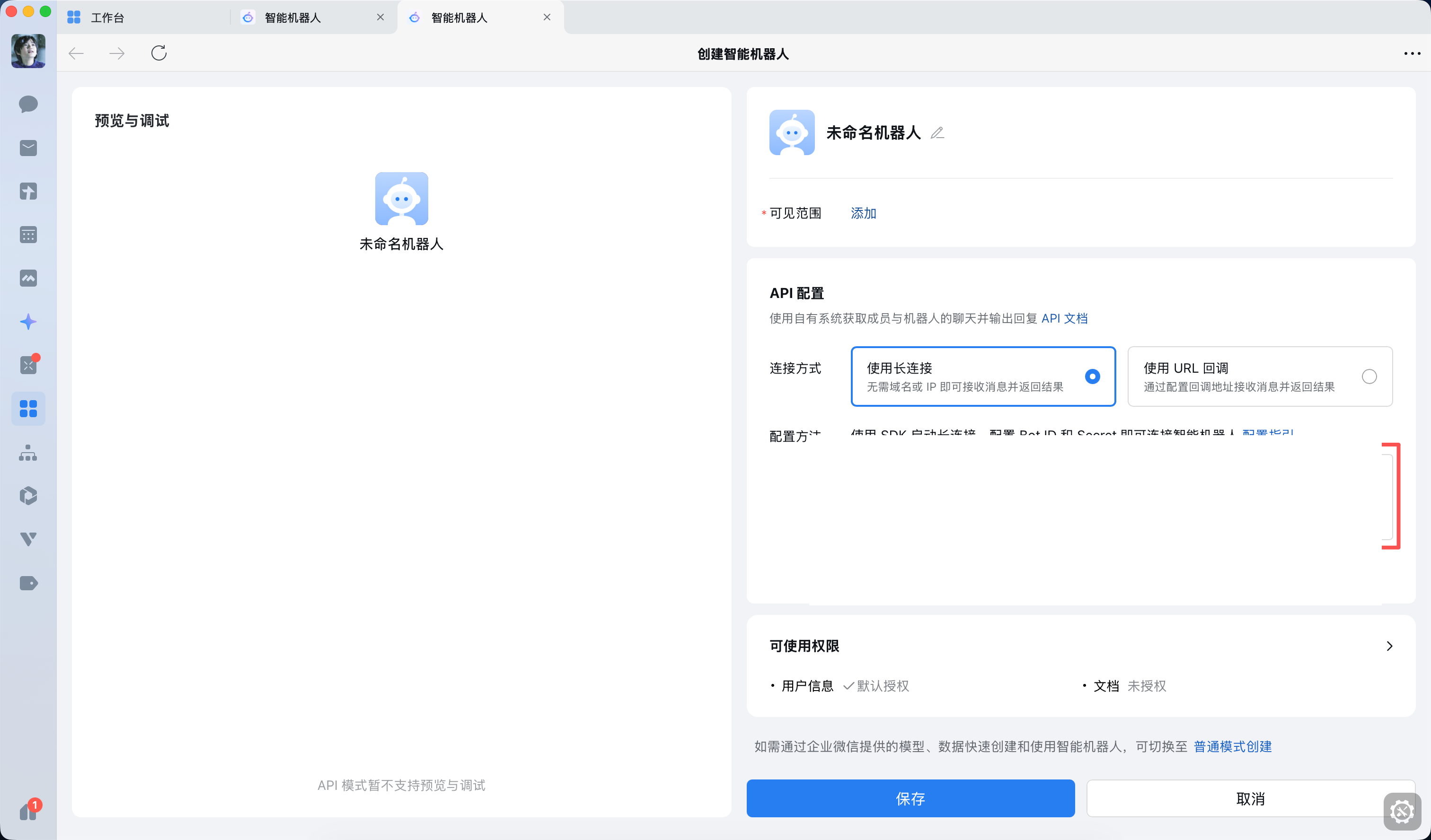
- In the connection mode section, select 使用长连接
- Copy the generated Bot ID and Secret
- Configure the robot visibility scope, then save the robot
WeCom UI reference for this flow:
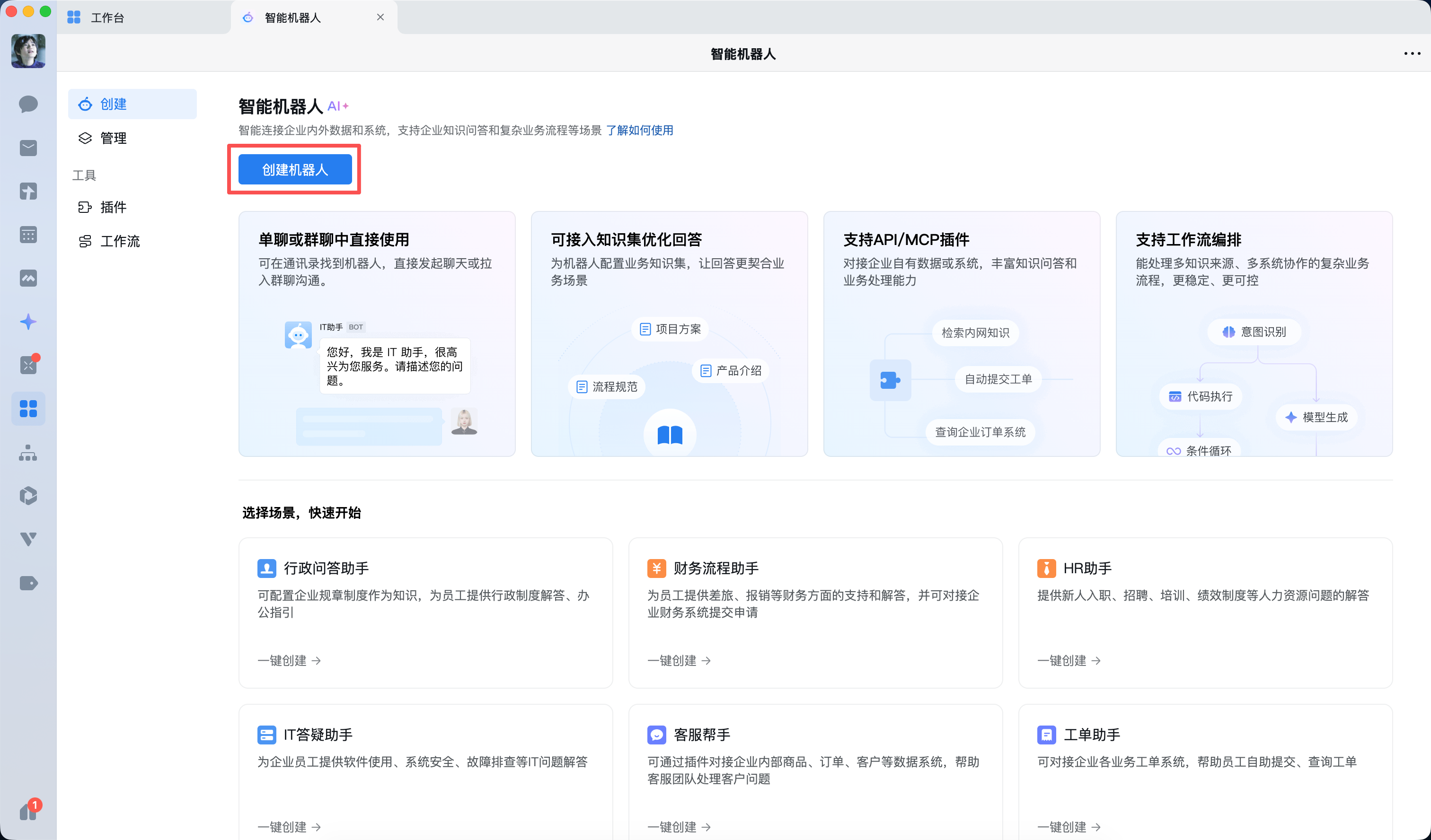
The regular create page includes an API 模式创建 entry at the bottom:
Once you switch to API mode, choose 使用长连接 and copy the generated credentials. The screenshot below is intentionally redacted:
Why This Matters
The official guide distinguishes long connection from URL callback. CCCC's current WeCom adapter is built for the long-connection flow, so choosing the callback URL mode will not work here.
Permissions
The official WeCom guide notes that some organizations restrict who can create long-connection bots. In that case, the Bot ID and Secret may not be shown, and the page will ask you to contact an administrator to grant 长连接 permission first.
Step 2: Configure CCCC
Via Web UI
This is the supported credential setup path today.
- Open the CCCC Web UI at
http://127.0.0.1:8848/ - Go to Settings
- Open the IM Bridge tab
- Select WeCom / 企业微信
- Enter:
- Bot ID: the Bot ID generated by WeCom
- Secret: the Secret generated by WeCom
- Click Save Config
After saving, CCCC writes group IM config in this shape:
im:
  platform: wecom
  wecom_bot_id: "your_bot_id"
  wecom_secret: "your_secret"
Current Credential Model
The current WeCom bridge does not require CorpID, AgentID, or a callback URL. The implementation only resolves wecom_bot_id and wecom_secret.
CLI Status
CCCC can start, stop, and inspect a WeCom bridge from CLI once the group is already configured, but cccc im set is not yet wired to accept WeCom credentials directly.
So the practical flow today is:
- save
wecom_bot_idandwecom_secretin the Web UI - optionally use CLI later only for control and inspection
Step 3: Start the Bridge
Via Web UI
When you click Save Config, CCCC saves the latest form values and starts the IM bridge automatically. The status should become Running.
Via CLI
If the WeCom config is already saved for the group:
cccc im start
cccc im status
cccc im logs -f
Step 4: Authorize the Chat
Like other CCCC IM bridges, new chats must be explicitly authorized before they can interact with the group.
- Open the WeCom robot conversation
- Send
/subscribe - The bot returns a one-time binding key
- Approve it from one of these paths:
- Web UI: Settings → IM Bridge → Pending Requests
- CLI:
cccc im bind --key <key> - Foreman-assisted: send the key to foreman and ask foreman to bind it
After authorization, the chat can send and receive messages normally.
Step 5: Verify Basic Reachability
- Send a plain text message to the robot in a direct chat
- In a group chat, @mention the robot before sending ordinary text; recognized CCCC commands such as
/statusand/subscribemay be sent directly, while unrelated slash commands are ignored - Confirm the bridge log shows inbound activity:
cccc im logs -fIf the bridge is connected but no inbound events appear, treat that as a platform-delivery issue rather than a credential-format issue.
Current Support in CCCC
The current WeCom adapter supports:
- inbound callback subscription over WebSocket
- outbound replies bound to the latest inbound callback request
- plain text messaging
- streaming replies
- outbound file/media attachments via the WeCom AI Bot WebSocket chunk upload protocol
- inbound file/media download with WeCom AES decryption when the callback includes a download URL and AES key
Current limitations:
- non-text inbound messages include text placeholders such as
[image],[file: name],[voice], or[video]alongside attachment metadata - inline stream image replies are limited to PNG/JPEG payloads that fit WeCom's stream item size limit; other attachments use media upload first
Both workers coalesce rapid full-snapshot updates and always finalize the native stream. If a stream preview exceeds WeCom's byte limit, the completed reply remains enabled and is delivered in lossless 2,048-character / 64-line chunks instead of being mistaken for an already-complete stream.
The adapter implementation lives in:
crates/cccc-web/src/im_runtime/wecom.rs
Troubleshooting
Bot ID / Secret not visible
Most likely your account does not have permission to configure long-connection robots. Ask a WeCom admin to grant access to the 长连接 mode.
Bridge shows Running but no messages arrive
This usually means setup passed, but the WeCom platform is not delivering inbound events. Check:
- The robot was created with API 模式 → 使用长连接
- You saved the correct Bot ID and Secret
- You are chatting with the exact robot that was configured
- The organization has not restricted long-connection usage for your account
Do I need Agent ID?
No for the current CCCC integration. The WeCom bridge currently uses Bot ID and Secret only.
Do I need a public callback URL?
No. The current CCCC WeCom integration is built on the long-connection WebSocket flow, not the URL callback mode.